
 By
By 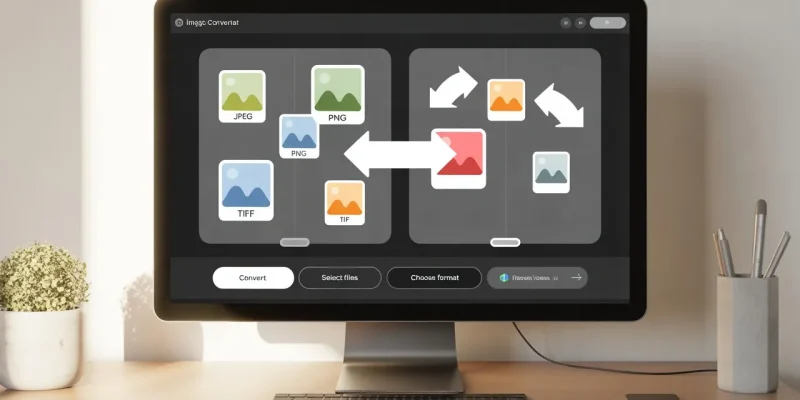
Images are a core part of digital communication, whether you’re designing a website, writing a blog, managing an online store, or sharing content on social media. However, not all image formats work the same way. Some are better for quality, others for performance, and some for compatibility.
Knowing how to change image file formats efficiently can save time and improve results. This is where an Image Converter becomes a simple yet powerful solution.
Understanding Image File Formats
Before using any conversion tool, it helps to understand why different image formats exist. JPG files are commonly used for photographs due to their smaller file size. PNG images support transparency and are often used for graphics and logos.
SVG files are vector-based and scale without losing quality, while newer formats like WEBP and AVIF are designed to provide better compression for the web. Each format serves a purpose, but choosing the wrong one can impact image quality or page speed.
When You Need to Convert Images
You may need to change image formats for several reasons. Website optimization is one of the most common. Large image files slow down loading times and negatively affect user experience. Social media platforms also have specific format requirements, and email clients may not support certain file types.
Developers often convert images to ensure cross-browser compatibility. An image converter helps handle all these situations efficiently without requiring advanced technical skills.
Step-by-Step Guide to Using an Image Converter
Step 1: Choose a Reliable Tool
Start by selecting a trusted online or offline tool. Online tools are convenient and do not require installation, while desktop software may offer advanced controls. Choose a tool that supports multiple formats and maintains image quality during conversion.
Step 2: Upload Your Image
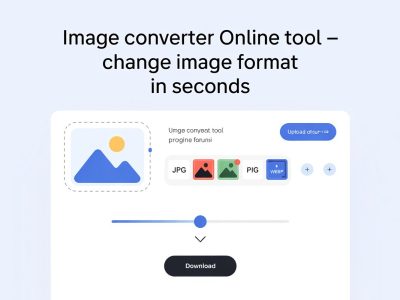
Once you’ve selected a tool, upload the image you want to convert. Most tools support drag-and-drop functionality, making the process quick and user-friendly.
Step 3: Select the Output Format
Choose the desired output format based on your needs. For example, convert to JPG for smaller file sizes, PNG for transparency, or WEBP for faster web performance.
Step 4: Adjust Optional Settings
Some tools allow you to adjust quality, resolution, or compression levels. These settings help balance image clarity and file size, especially for web use.
Step 5: Convert and Download
After selecting your preferences, click the convert button and download the final image. The process usually takes only a few seconds.
Best Practices for Image Conversion
To get the best results, always keep an original copy of your image before conversion. Avoid repeatedly converting the same image, as it can reduce quality over time. Test converted images on different devices to ensure they display correctly. Using the right format for the right purpose ensures both performance and visual appeal.
Common Mistakes to Avoid
One common mistake is over-compressing images, which can lead to visible quality loss. Another is ignoring transparency requirements, especially when converting PNG files to JPG.
Choosing unsupported formats for specific platforms can also create display issues. Being mindful of these mistakes helps you achieve better outcomes.
Why Image Conversion Improves Workflow
An Image Converter simplifies workflows by eliminating the need for complex editing software. Image Converter are essential for Designers, bloggers, and maketers can quickly adapt images for various platforms without technical barriers. This efficiency saves time, reduces errors, and supports better collaboration across teams.
Conclusion
Changing image file formats doesn’t have to be complicated. With the right approach and tools, anyone can convert images quickly and efficiently.
An Image Converter makes the process accessible, whether you’re optimizing a website, preparing visuals for social media, or ensuring compatibility across platforms. By understanding formats, following best practices, and avoiding common mistakes, you can easily manage image conversions while maintaining quality and performance.
FAQs
1. Does converting an image reduce its quality?
Quality loss depends on the format and compression settings. Using proper settings helps maintain a good balance between quality and file size.
2. Can I convert multiple images at once?
Many tools support batch conversion, allowing you to convert several images simultaneously and save time.
3. Are online image converters safe to use?
Most reputable tools are safe, but it’s best to avoid uploading sensitive or confidential images to online platforms.









Comments